CodeApp JS CLI

Install, authenticate, setup, and deploy Code Apps from a terminal

CAP is the terminal companion for CodeApp JS work.

codeapp-js-cli supports two non-breaking use cases: install it globally and use cap as a terminal command, or install it as a project dependency and call the local CLI or Node.js API.

cap is a thin wrapper around the local @microsoft/power-apps-cli package and does not require an external pac installation.

No external pac install Global or local install Node.js 20+
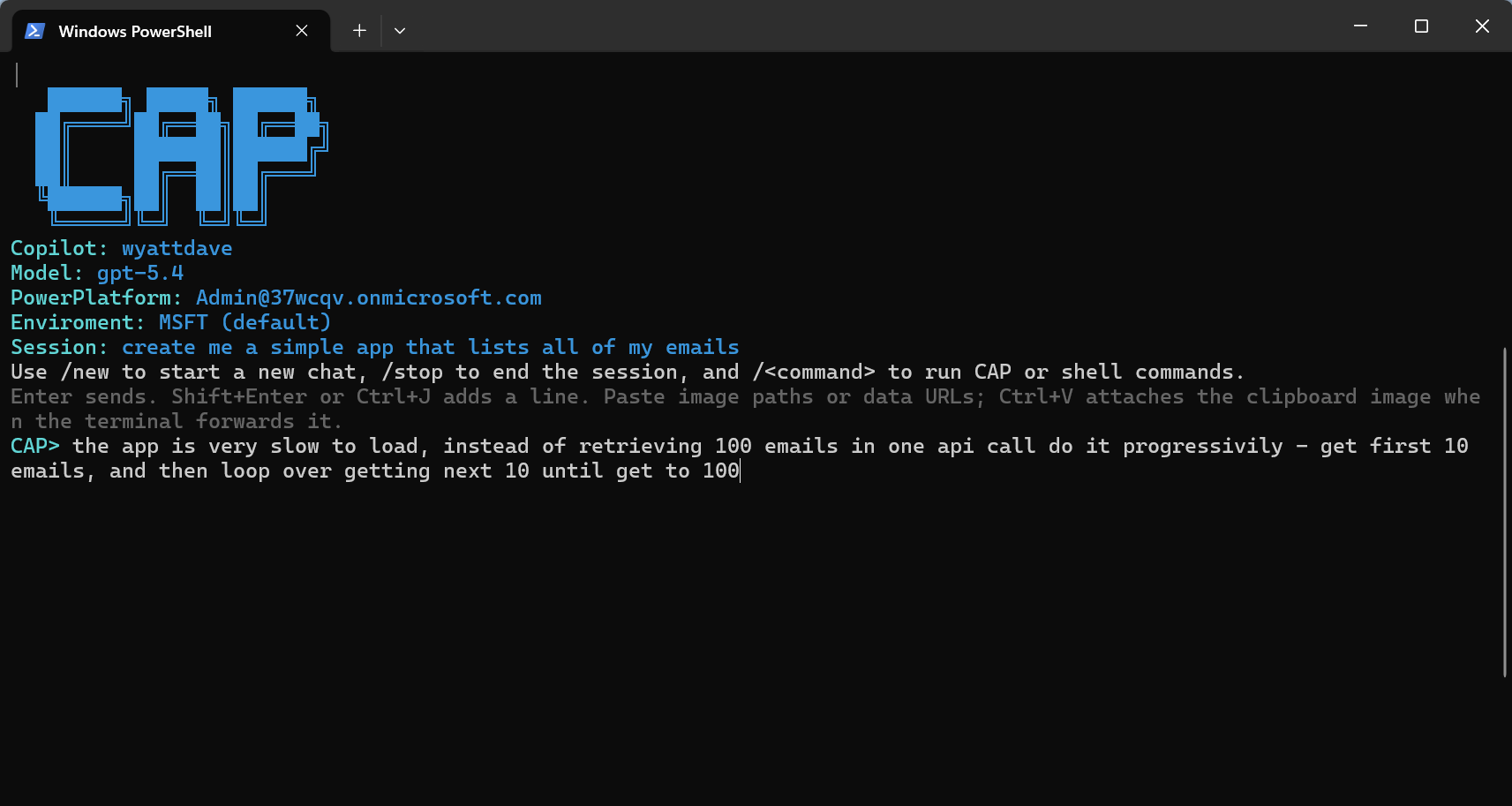
CAP agent workflow running in Visual Studio Code

Standalone CLI

global install
npm install -g codeapp-js-cli
cap
cap-p <prompt>
cap auth
cap environment --info
cap setup

cap is the portable command name to document and script against.

The package also exposes CAP as an alias for shells where you want the uppercase form.

Global install is the right choice when you want one CLI available across multiple workspaces on the same machine.

CAP wraps the local Power Apps CLI package, so it is portable across machines without a separate PAC setup.

Project dependency

local install
npm install codeapp-js-cli
npx cap --help
npx cap auth
npx --package codeapp-js-cli cap --help
npx --package codeapp-js-cli cap auth
{
  "scripts": {
    "cap": "cap",
    "cap:setup": "cap setup",
    "cap:deploy": "cap deploy"
  }
}

Node.js API

lib/cap-core.js

The package root continues to export reusable command functions from lib/cap-core.js, so existing dependency consumers are not forced to change imports.

const {
  capChat,
  capEnvironment,
  capSetup,
  parseCommandInput,
} = require('codeapp-js-cli');

async function run() {
  const parsed = parseCommandInput(process.argv.slice(2));
  if (parsed.target === 'setup') {
    await capSetup();
    return;
  }

  await capEnvironment(undefined, { namedArgs: { info: true } });
  await capChat();
}

run().catch((error) => {
  console.error(error.stderr || error.stdout || error.message);
  process.exit(typeof error.code === 'number' ? error.code : 1);
});
import cap from 'codeapp-js-cli';

await cap.capSetup();
  • require('codeapp-js-cli') still resolves to the same lib/cap-core.js API surface.
  • Deep imports such as require('codeapp-js-cli/lib/cap-core') and require('codeapp-js-cli/lib/cap-core.js') remain available for older integrations.
  • The CLI entry point remains bin/cap.js, exposed through the cap and CAP executables.

When npx finds a stale global shim

Windows friendly

If npx cap fails with a path under %APPDATA%\npm\node_modules\codeapp-js-cli\bin\cap.js, npx is running a stale global shim instead of a project-local install.

npx --package codeapp-js-cli cap --help
npm uninstall -g codeapp-js-cli
Remove-Item "$env:APPDATA\npm\cap.cmd","$env:APPDATA\npm\cap.ps1","$env:APPDATA\npm\CAP.cmd","$env:APPDATA\npm\CAP.ps1" -Force -ErrorAction SilentlyContinue
npm install -g codeapp-js-cli

Commands

Command Purpose
capStart the interactive Copilot chat session using the active saved CAP context.
cap-p <prompt>Run a one-off Copilot turn using the current CAP prompt and instruction files.
cap authStart interactive browser login using the bundled MSAL auth provider.
cap auth --changeClear local auth cache and force account picker login.
cap auth --logoutClear the cached login.
cap copilotLaunch Copilot CLI login flow or save an accepted token.
cap copilot --token <githubToken>Save a Copilot-compatible GitHub token.
cap copilot --logoutClear CAP-saved Copilot metadata and bundled Copilot OAuth state on Windows.
cap modelList live GitHub Copilot models and store the selected model.
cap model --debugPrint model source, auth identity, and available model ids for the active account.
cap model --<publisher/model>Update the selected model without opening the picker.
cap skillsOpen bundled skill files from the installed CodeApp JS package.
cap skills --<skill>Quick-open a matching packaged skill.
cap instructionPrint the CLI instruction file.
cap instruction --editOpen the instruction file in VS Code or a platform fallback editor.
cap instruction --deleteRemove the CLI instruction file.
cap instruction --<markdownPath>Copy that Markdown file into the CLI instruction file.
cap sessionList saved chats and mark the selected one as active for the next chat session.
cap session --<session>Select a saved CAP session directly.
cap editList workspace files and open the selected file.
cap edit --<filePath>Open a specific workspace file in VS Code or a fallback editor.
cap environmentList tenant environments and write the selected environment ID to power.config.json.
cap environment --<environmentURL>Select the environment whose Dynamics URL matches the provided URL.
cap environment --infoPrint current environment display name, Dynamics URL, and environment ID.
cap dataverse --<table-logical-name>Add a Dataverse table data source through the bundled action layer.
cap flowList flows and add the selected flow as a Power Apps data source.
cap flow --<flow-id>Run power-apps add-flow --flow-id <id> directly.
cap connection --<apiName>Select the first connection for a connector and add it as a data source.
cap setupCopy the bundled codeapp-js/codeApp template into the current working directory.
cap deployRun power-apps push, extract the app ID, and write it into power.config.json.
cap deploy --debuggerPrepend the debugger bootstrap to dist/index.js before pushing.

What CAP does behind each workflow

  • cap loads the active session from agent/, reads prompt and instruction files from the CLI setup directory, and runs the conversation through the official GitHub Copilot CLI SDK.
  • Slash commands inside chat run either CAP commands such as /model or shell commands such as /git status and /cd ...
  • cap-p <prompt> uses the current prompt and instruction files but does not create or reuse a saved CAP session.
  • cap environment writes the selected environment ID to power.config.json.
  • cap flow and cap flow --<flow-id> add Power Automate flows through bundled power-apps commands.
  • cap connection --<apiName> lists connector connections through the service layer and adds the first one as a data source.
  • cap deploy pushes the app, extracts the app ID from the play URL, and saves it back into config.

Models and tool execution come from the Copilot CLI SDK

CAP now uses the official GitHub Copilot CLI SDK instead of the models.github.ai REST catalog and inference endpoints.

Available models come from the active Copilot account, so the picker follows the Copilot model surface rather than the GitHub Models PAT catalog.

Tool execution and file changes are handled by the Copilot CLI runtime, with CAP prompting for per-action approval.

cap model stores the selected model in the CLI setup workspace config.

Where CAP looks for Copilot sign-in

  • Saved Copilot sign-in is stored in the local CAP user config.
  • Runtime auth prefers a Copilot CLI logged-in user, then COPILOT_GITHUB_TOKEN, GH_TOKEN, GITHUB_TOKEN, then the saved CAP token.
  • For environment variables, GitHub CLI auth, or explicit tokens, remove or change that source directly.
  • Running CAP copilot in an interactive shell launches Copilot device login when you press Enter at the token prompt.
  • For non-interactive setup, set COPILOT_GITHUB_TOKEN, GH_TOKEN, or GITHUB_TOKEN.
  • CAP copilot --logout removes CAP-saved metadata and clears bundled Copilot OAuth state on Windows by deleting remembered-user entries and matching Windows Credential Manager targets.

Keep package output small and current

Node.js 20+
npm run update:power-apps-cli
npm run prune:production
  • Package output stays lean because package.json whitelists only bin, lib, and README.md.
  • Bundled assets come from the codeapp-js dependency.
  • The command logic lives in lib/cap-core.js and is exported from the package root so other tools can build on the same command implementations.